Table of Contents
Sync Licensing Report Solution
 Updated
by Niamh Ferns
Updated
by Niamh Ferns
Sync Licensing Report Demonstration
The Sync Licensing Report PowerPlay solution provides an out-of-the-box solution for you to track licensing within your customers' tenants and provide them with a report on a set schedule.
Below, you'll find a demonstration of the Asset Manager Solution in action:
[LOOM DEMONSTRATION]
What does it do?
The Sync Licensing Report provides a way for your customers to request a report of license usage in their Microsoft environment be delivered to them on a set schedule of their choosing.
This report will contain details for the license, how many are available, and who they've been assigned to.
Deployment
In this section, we'll cover how to go through the deployment process for the Sync Licensing Report Solution.
For the deployment to work, you will need to deploy the solution library, then deploy either the ALM or self-service solution.
Solution Marketplace Deployment
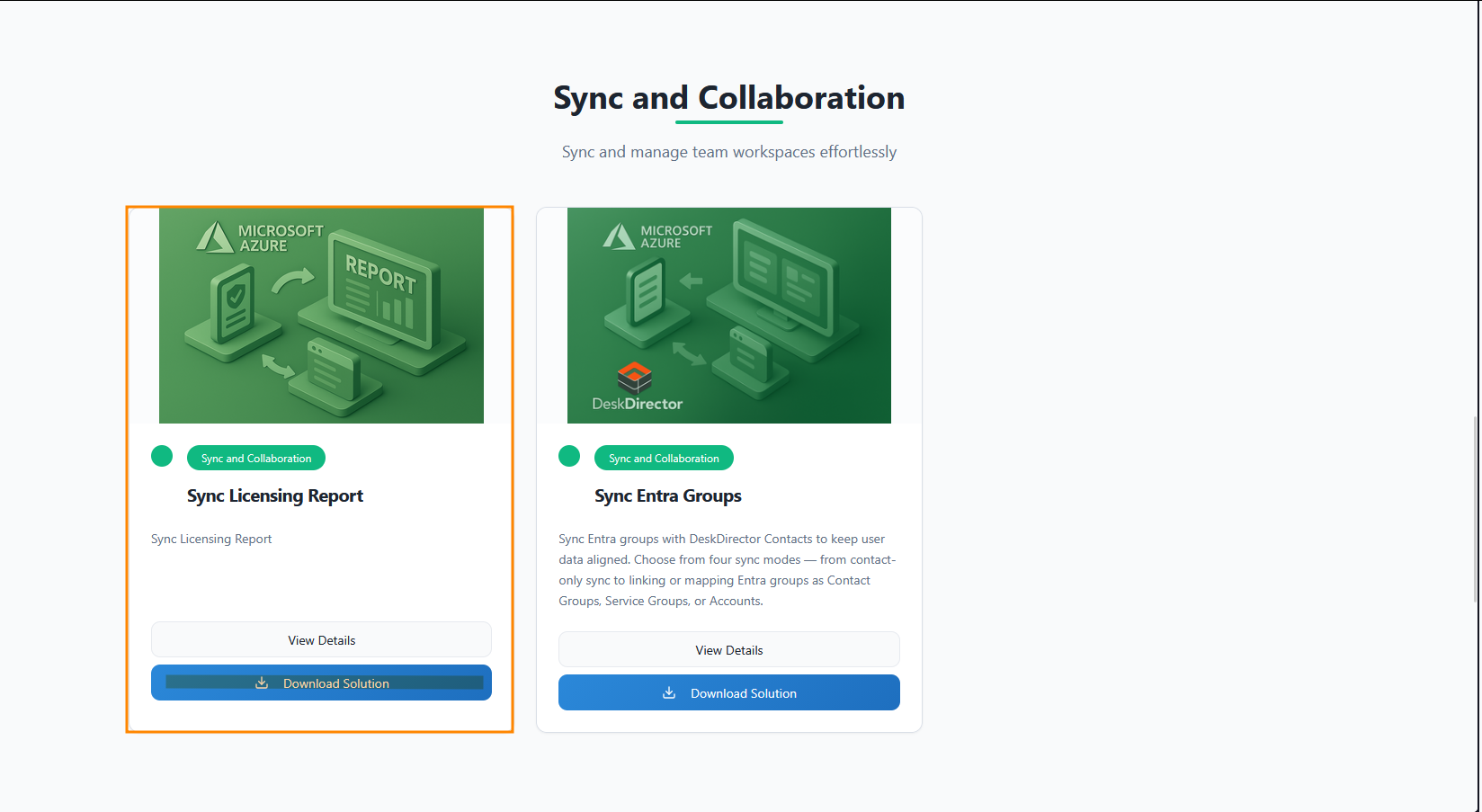
- Head to the PowerPlay Marketplace and select Download Solution for the Sync Licensing Report solution:
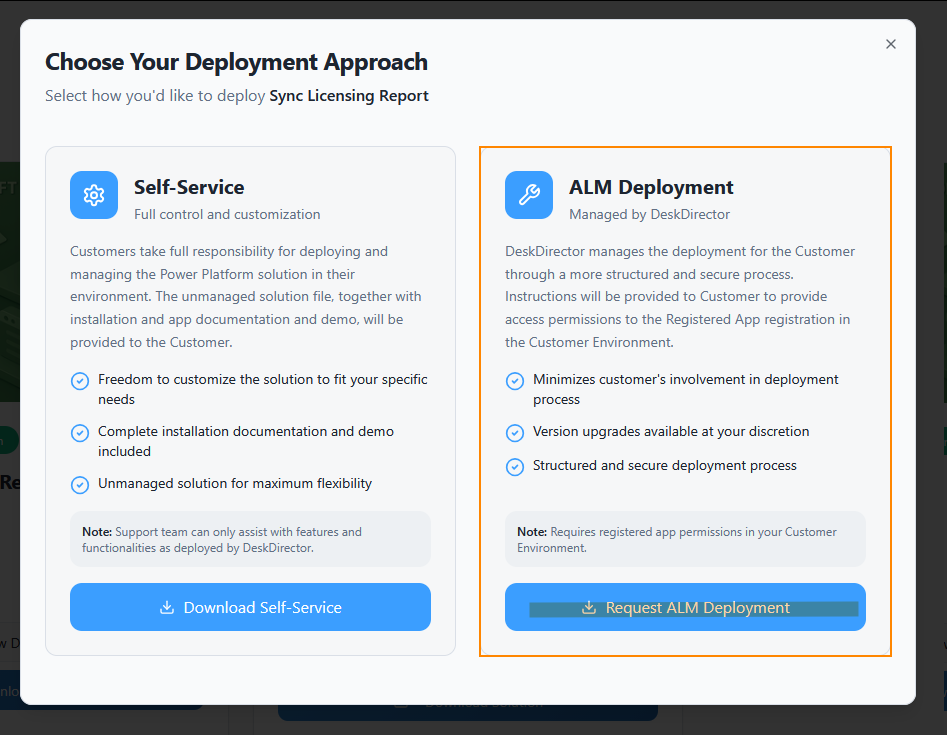
- Select Request ALM Deployment:
- Navigate to your open tickets on the DD4DD Support Portal, and you should see a ticket with a name similar to
PowerPlay App Deployment Request: Sync Licensing Report - Open the ticket and scroll down to the automated system comment. You should see that it has started the deployment for you.
- On this page, you will also see an additional form has been added for you to select a CustOrg to deploy to. Please fill this out, and then submit.
- With the CustOrg selected, the deployment will commence, and you will receive an update on the ticket advising you when the deployment has been successful.
- To confirm, open Power Apps and navigate to the Solutions tab. Under managed, you should see a successful deployment of the Sync Licensing Report solution.
Solution Library Deployment
- Open your Admin Portal and head to
System Management>Solution Library. - Select the Managed Solutions tab and open the Sync Licensing Report solution.On this page, you can also see a version history as well as a list of features that will be deployed.
- Select Deploy
- Follow the on-screen prompts to select a Queue/Board, Status, and Priority
- Confirm by selecting Deploy. (This step can take some time to complete. Please do not close out of this page.)
- Confirm under
Advanced>EventsandClient Portal>Formsto make sure your assets have deployed correctly.
Post Deployment
ServOrg
Connections & Connection References
- Under your ServOrg environment, navigate to the Default Solution and open the Connection references tab in the Objects panel
- Search for
Licensingand then update the following connection references:These will all reference the connections you configured in your ServOrg post-deployment. For ones that you don't have a connection for already, create a new one.- IECB ServOrg Licensing - Dataverse
- IECB ServOrg Licensing - DeskDirector
- IECB ServOrg Licensing - Excel online (Business)
- IECB ServOrg Licensing - IECB ServOrg Licensing - HTTP with Microsoft Entra ID (preauthorized)For the URIs, use
https://graph.microsoft.com. - IECB ServOrg Licensing - Office 365 Outlook
- IECB ServOrg Licensing - OneDrive for Business
Environment Variables
When you set your environment variables, please instead add a custom value and do not edit the default.
We only have one environment variable to update. Under the Environment variables tab in the Objects panel, update the IECB Licensing - Request Type ID to the ID for your Licensing Report Service Type.
Cloud Flows
- Under your ServOrg environment's Managed Solutions, navigate to the IECB-ServOrg-App-Licensing solution and open the Cloud flows tab in the Objects panel
- Enable the [HttpReq] Extract CustOrg Users Licenses flow
- Enable the [HttpReq] Extract CustOrg Subscribed SKUs flow
- Enable the [HttpReq] Send Licensing Report via Email flow
- Enable the [HttpReq] Clean License Details flow
- Enable the [HttpReq] Process Licensing Report Request flow
- Enable any remaining flows that have not yet been enabled
CustOrg
Connections & Connection References
- Under your CustOrg environment, navigate to the Default Solution and open the Connection references tab in the Objects panel
- Search for
Licensingand then update the following connection references:These will all reference the connections you configured in your CustOrg post-deployment. For ones that you don't have a connection for already, create a new one. For ones that have already been set, you can leave as is.- Dataverse
- IECB CustOrg Licensing - MS Graph Groups and Users
- IECB HTTP with Microsoft Entra IDYou should use
https://graph.microsoft.comas the URI. - IECB Microsoft Dataverse
- IECB Power Automate Management
Cloud Flows
- Under your CustOrg environment's Managed Solutions, navigate to the IECB-CustOrg-App-Licensing solution and open the Cloud flows tab in the Objects panel
- Enable the [DDCommand] List Subscribed SKUs flow
- Enable the [DDCommand] List Users Licenses flow
App Sharing & Command Broker Registration
- Now, under your CustOrg environment's Managed Solutions, navigate to the IECB CustOrg Library solution and open the Cloud flows tab in the Objects panel
- Perform a manual run of the [Scheduled] Enumerate Command Offers flow
- Now, back in your ServOrg, open the IECB-ServOrg-App-Licensing Managed Solution, and then open the Apps tab in the Objects panel
- Share the Licensing Reporter Portal app with your service account and with any users who will require access.
Your customer can now lodge a ticket to request a licensing report, and you will see it available in your Licensing Reporter Portal app!
