Table of Contents
- Pre-Deployment Checks
- Troubleshooting & Common Issues
- "When I run the ManagePermissionsGrant.ps1 script, it does run, but I get the following error: Import-Module: The specified module 'Microsoft.Graph.Authentication' with version 'X.X.X' was not loaded because no valid module file was found in any module directory."
- "When I run the ManagePermissionsGrant.ps1 script, it allows me to authenticate, but as soon as I choose a scope, I get the following error: The 'Get-MgUser' command was found in the module 'Microsoft.Graph.Users', but the module could not be loaded."
Pre-Deployment Checks
 Updated
by Niamh Ferns
Updated
by Niamh Ferns
- Pre-Deployment Checks
- Troubleshooting & Common Issues
- "When I run the ManagePermissionsGrant.ps1 script, it does run, but I get the following error: Import-Module: The specified module 'Microsoft.Graph.Authentication' with version 'X.X.X' was not loaded because no valid module file was found in any module directory."
- "When I run the ManagePermissionsGrant.ps1 script, it allows me to authenticate, but as soon as I choose a scope, I get the following error: The 'Get-MgUser' command was found in the module 'Microsoft.Graph.Users', but the module could not be loaded."
Pre-Deployment Checks
Estimated Time: 15 minutes
Before running any deployments, we want to perform some checks first.
All PowerShell prompts in the following steps must be executed from a terminal opened as administrator
Microsoft Account: Onboarding Administrator
An Onboarding Administrator - a Microsoft account from your tenant with:
- Cloud Application Administrator role
- Power Platform Administrator role
- A Power Automate Premium license
- A Power Apps Premium license
- A Microsoft Teams license
- An Exchange Online license
During the onboarding process, you will need at least 2 administrator accounts:
- For any actions taken in your DeskDirector instance, please use a Master Administrator agent from your DeskDirector instance. (If you are a Master Admin in DeskDirector, this will be your standard DeskDirector login.)Please note that your account must have Tech Portal access enabled to access the Admin Portal.
- For any actions taken in Microsoft, you will need a Microsoft Cloud & Power Platform administrator service account from your ServOrg and for your CustOrg.If you are deploying your ServOrg and CustOrg in the same environment, you can use the same service principal for both.
Install Power Platform CLI Module
From a PowerShell session, run the following command to confirm if the Power Platform CLI Module is available:
Get-Command "pac"
If installed correctly, you can expect the following result:
PS C:\Windows\System32> Get-Command "pac"

CommandType     Name                                               Version    Source
-----------     ----                                               -------    ------
Application     pac.cmd                                            0.0.0.0
If this module is missing, you will see an output similar to below, and you need to follow these instructions to install: Install Microsoft Power Platform CLI
PS C:\Windows\System32> Get-Command "pac"
Get-Command: The term 'pac' is not recognized as a name of a cmdlet, function, script file, or executable program.
Check the spelling of the name, or if a path was included, verify that the path is correct and try again.
Install Microsoft Graph Module
From a PowerShell session, run the following command to confirm if the Microsoft Graph PowerShell SDK is available:
Get-Module -ListAvailable -Name Microsoft.Graph
If installed correctly, you can expect the following result:
PS C:\Windows\System32> Get-Module -ListAvailable -Name Microsoft.Graph

    Directory: C:\Program Files\PowerShell\Modules

ModuleType Version    PreRelease Name                                PSEdition ExportedCommands
---------- -------    ---------- ----                                --------- ----------------
Manifest   2.32.0                Microsoft.Graph                     Core,Desk
If this module is missing, you will see an output similar to below, and need to follow these instructions to install: Install the Microsoft Graph PowerShell SDK
PS C:\Windows\System32> Get-Module -ListAvailable -Name Microsoft.Graph
PS C:\Windows\System32>
Microsoft Graph API Permissions
[V] Never run [D] Do not run [R] Run once [A] Always run [?] Help (default is "D"):Please either run once or always run, depending on your preference.
Authenticate with the Microsoft Graph API using your Onboarding Administrator. You can do this by executing the following commands in sequence:
Disconnect-MgGraph : The 'Disconnect-MgGraph' command was found in the module 'Microsoft.Graph.Authentication', but the module could not be loaded. For more information, run 'Import-Module Microsoft.Graph.Authentication'.Please run the following command from your elevated prompt before running the commands below:
Import-Module Microsoft.Graph.AuthenticationDisconnect-MgGraphConnect-MgGraph -Scopes "Application.ReadWrite.All", "Directory.ReadWrite.All"
Permissions may be requested for both Application.ReadWrite.All and Directory.ReadWrite.All. Grant these if needed.
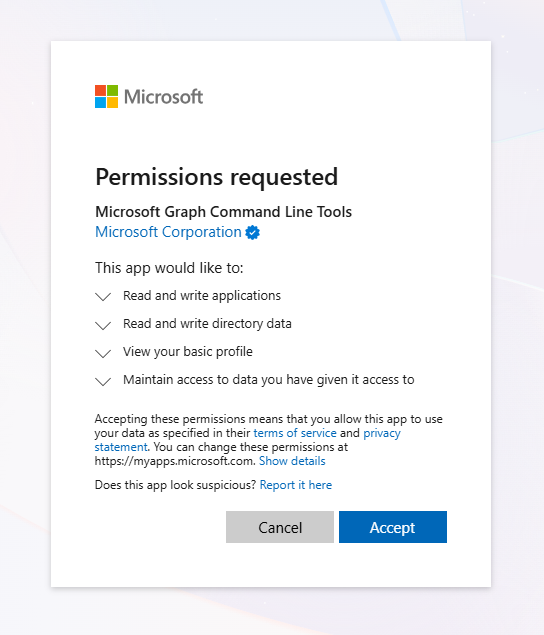
If successful, your interactive browser will display the following message
Authentication complete. You can return to the application. Feel free to close this browser tab.

And returning to your PowerShell session, you should see a similar output to that below:
Welcome to Microsoft Graph!

Connected via delegated access using 14d8xxxx-xxxx-xxxx-xxxx-xxxxxxxxb67e
Readme: https://aka.ms/graph/sdk/powershell
SDK Docs: https://aka.ms/graph/sdk/powershell/docs
API Docs: https://aka.ms/graph/docs

NOTE: You can use the -NoWelcome parameter to suppress this message.
HTTP with Microsoft Entra ID
- Make sure you have PowerShell 7 installed and accessible. If needed, you can install it with Winget using the following command from a Legacy PowerShell prompt:Please do not use PowerShell through Windows Terminal. You'll need to open PowerShell directly. Please ensure that you are running PowerShell as an Administrator (also known as using an elevated prompt).
winget install --id Microsoft.PowerShell --source winget
- Download the ManagePermissionsGrant.ps1 script from the Microsoft PowerApps Repository
- Use
Unblock-Fileif you receive error messages related to Execution Policy - Please run
Disconnect-MgGraphbefore running theManagePermissionsGrant.ps1script.
- Use
- Using the ManagePermissionGrant.ps1 script, grant
Directory.Read.Allpermissions to your Onboarding Administrator account:- On the initial
Cloud selectionprompt, proceed with[A] Azure Global (recommended) - On the
Resource and scope selectionprompt, proceed with[C] Commonly used Apps - Select
Microsoft Graphfrom theChoose 1st party app for resource and scope selectionpop-up - Search and select
Directory.Read.Allfrom theChoose Scopespop-up - Select
[N] Nofrom theSelect consent typeprompt, followed by selecting your Onboarding Administrator from theChoose a userpop-up - Select
[N] Nofrom theGrant deletionprompt - Select
[Y] Yesfrom theConfirm permission grant updateprompt
- On the initial
$ & .\ManagePermissionGrant.ps1
########################################################
# 'HTTP with Microsoft Entra ID' connector - Permission grant configuration
# This script will guide you through the process of granting the required permissions
# to the HttpWithAADApp Microsoft 1st party app 'ServiceApp_NoPreAuths' to access the selected resources.
########################################################

Cloud selection
Most customers access to the Global Azure environment. Do you want to connect using azure global or do you want to
select from a list?
[A] Azure Global (recommended)  [S] Select from a list (advanced)  [?] Help (default is "A"):
Resource and scope selection
Most customers access to widely used resources (e.g. Graph, Sharepoint, Dataverse, etc.). Do you want to display only
the commonly used apps?
[C] Commonly used Apps  [A] All apps (advanced)  [?] Help (default is "C"):
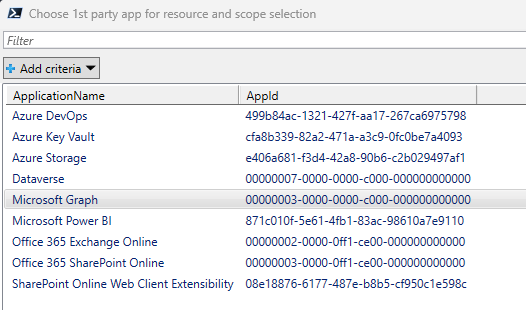

Select consent type
Do you want the service principal 'PowerPlatform-webcontentsv2-Connector' (6e78fad3-c9e2-4e04-b4da-0d378847defa) to be
able to impersonate all users?
[Y] Yes  [N] No (I need to select a specific user)  [?] Help (default is "Y"):
Grant deletion
Do you want to delete any of the existing grants?
[N] No  [Y] Yes, I want to first delete existing grants  [?] Help (default is "N"):
Confirm permission grant update
Do you want to proceed and update the above permission grant?
[Y] Yes  [N] No  [?] Help (default is "Y"):
Next Steps
With these checks complete, you can move on to PowerPlay Provisioning & Deployment
Troubleshooting & Common Issues
"When I run the ManagePermissionsGrant.ps1 script, it does run, but I get the following error: Import-Module: The specified module 'Microsoft.Graph.Authentication' with version 'X.X.X' was not loaded because no valid module file was found in any module directory."
This is often caused by duplicate versions of Microsoft Graph being installed. From your elevated PowerShell 7 prompt, run the following and confirm which versions you have: Get-Module Microsoft.Graph.Authentication -ListAvailable.
You should only see one version. If you see multiple, please uninstall all old versions of the Microsoft.Graph.Authentication module and try again. You can uninstall using the following command: Uninstall-Module Microsoft.Graph.Authentication -RequiredVersion x.xx.x -Force.
"When I run the ManagePermissionsGrant.ps1 script, it allows me to authenticate, but as soon as I choose a scope, I get the following error: The 'Get-MgUser' command was found in the module 'Microsoft.Graph.Users', but the module could not be loaded."
This may be because of a missing dependency. Please install the Microsoft.Graph.Users module with the following command, and then try again: Import-Module Microsoft.Graph.Users.
